AI Spotify Canvas Maker: turn your album cover into a seamless looping Canvas video
The Spotify Canvas maker turns a Spotify link, your cover or a short description into an 8-second, silent, seamlessly looping 9:16 video in the exact Spotify Canvas dimensions.
Style · Auto
Failed renders are refunded automatically · Usually ready in 3–8 min · 10 credits
Spotify Canvas videos made with this generator
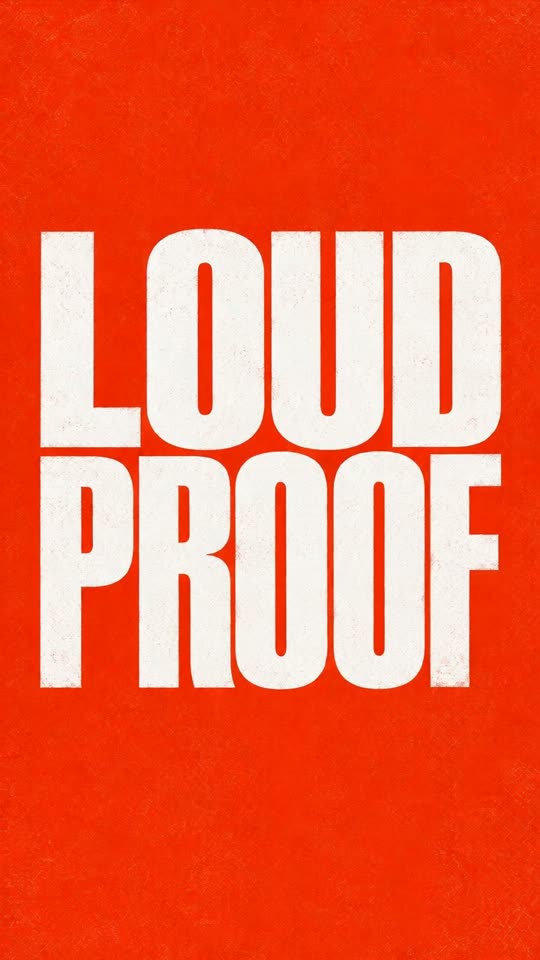
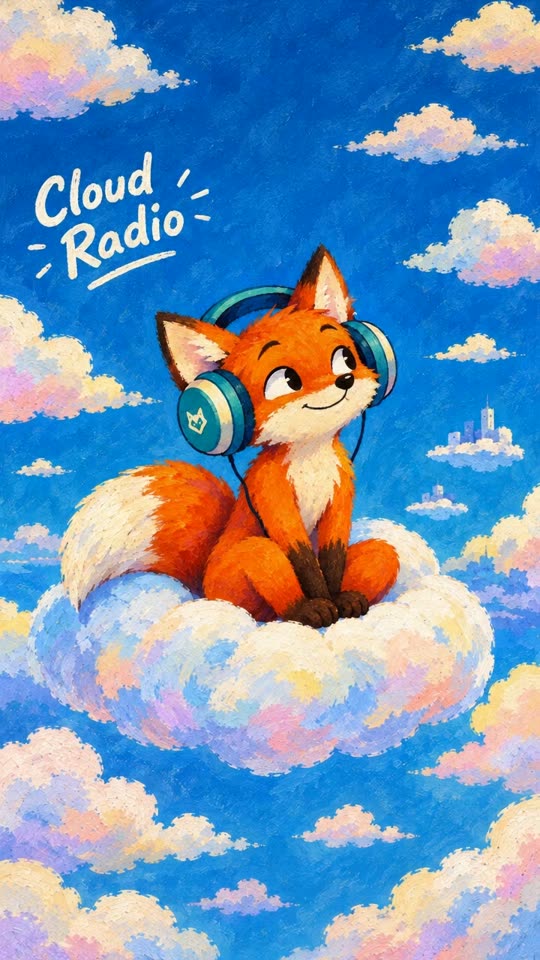
Every loop below was made from a test cover with this Canvas maker, exactly as you would make yours. Nothing was edited afterwards.
 From this photo
 From this photo
 From this photo
 From this photo
What is a Spotify Canvas?
A Spotify Canvas is the short vertical video that loops behind your track on the Now Playing screen, in place of the static cover. It plays silently, on repeat, between 3 and 8 seconds at a time, and it is one of the few visual elements artists control inside the app.
Spotify's own data shows that tracks with a Canvas get shared, saved and added to playlists more often than tracks without one. Any artist with Spotify for Artists access can add a Canvas to a release for free; the hard part has always been making a loop that looks good. That is what this AI Spotify Canvas generator does: it builds the loop from your cover, so you never open a video editor.
The loop is made with the cover as both first and last frame, so the motion returns to where it started with no visible cut. Every Canvas here is 8 seconds, 720×1280, MP4, silent, which Spotify accepts as is. Download it and upload it under the track in Spotify for Artists; it usually shows in the app within a few hours.
Spotify Canvas Maker is an independent tool, not affiliated with, endorsed by or sponsored by Spotify. 'Spotify' is a trademark of Spotify AB, used descriptively.
- Origin
- Spotify for Artists – Canvas feature (Spotify app)
- Started
- 2019 (Canvas launch); AI-made Canvases since 2025
- Source
- Original video / report
How the AI Spotify Canvas generator works
- 1
Paste a Spotify song link (we pull the cover and listen to a preview so the motion fits the song), upload the cover you already use, or describe the scene in a sentence.
- 2
Leave the style on Auto or open Advanced to pick a genre or mood, add a line of direction, or make a new scene without the artwork. Tick the consent box and press Make my video.
- 3
Preview the loop in the Now Playing mock-up, download the MP4 and upload it under the track in Spotify for Artists (Music → Releases → track → Add Canvas).
Spotify Canvas dimensions and specs
What Spotify for Artists accepts, and what you get here.
| Spec | Spotify requires | You get |
|---|---|---|
| Aspect ratio | 9:16 (vertical) | 9:16 |
| Resolution | 720×1280 minimum, 1080×1920 recommended | 720×1280 |
| Length | 3 to 8 seconds | 8 seconds |
| Format | MP4 or JPG | MP4 (H.264) |
| Audio | Ignored (Canvas is silent) | None |
| Loop | Plays on repeat | Seamless, no visible cut |
| Framing | Full-screen vertical | Full-screen vertical, built from your artwork |
How to upload to Spotify for Artists
Four steps, no review queue for most releases.
- 1
Open Spotify for Artists on the web, go to Music, then Releases, and pick the release.
- 2
Click the track, then Add Canvas (or Edit Canvas if one exists).
- 3
Upload the MP4 you downloaded here. Spotify checks the ratio and length automatically.
- 4
Save. The Canvas usually appears in the Spotify app within a few hours.
What happens in the 8 seconds
- 0–2sThe cover, full frame, starts to move: light drifts, textures breathe, the subject shifts slightly.
- 2–6sMotion that fits the artwork's mood, without camera zooms or pans so the framing stays put.
- 6–8sEverything eases back to the exact starting frame, so the loop restarts with no visible jump.
Who is it for?
Independent artistsProducersLabelsPodcasters with music releasesStart with one video
Pay once, no subscription. Credits work for every video on the site and pack credits stay valid for 12 months; failed renders are refunded.
One video · one-time
$9.9010 credits
Exactly this Spotify Canvas Maker video: 8 seconds, 9:16, 720p. The credits are added right after checkout; then press Make my video.
Starter Pack
SAVE 24%$14.9020 credits · 2 videos
2 videos for Spotify Canvas Maker or any other page on the site. $7.45 per video instead of $9.90.
Making more?
from$4.34per video
- Standard Pack · 6 videos$39.90
- Pro Pack · 18 videos$99.90
- Monthly plansfrom $19.90/mo
Payments are handled by our payment processor. Buying means you accept the Terms and the Refund Policy.
Spotify Canvas FAQ
What is a Spotify Canvas?
A Canvas is the 3 to 8 second vertical video that loops behind a track on Spotify's Now Playing screen instead of the static cover art. It is silent, plays on repeat, and is uploaded by the artist through Spotify for Artists.
How do I make a Spotify Canvas with this maker?
Upload your cover (or any still that fits the song), tick the consent box and press Make my video. The loop is built from the cover as first and last frame and is ready in about 3 to 8 minutes. Download the MP4 and upload it in Spotify for Artists.
Is the Spotify Canvas maker free?
No. A Canvas costs 10 credits, paid once with no subscription needed; the button shows the credits before you generate. Failed or declined renders return their credits automatically.
What image should I upload?
The exact cover you use on Spotify works best, 640×640 or larger, as JPG, PNG or WebP. Square fits best; other shapes are extended to fill the vertical frame. Illustrated, abstract or object covers loop best; covers with real faces may be declined by the model's safety filter.
How much does it cost?
10 credits per 8-second Canvas, the same as any other video. Credits work for every video on the site; pack credits stay valid for 12 months, monthly-plan credits for 30 days.
How long does it take?
Usually 3 to 8 minutes. You can leave the page; the loop is listed in My Creations when it is done.
Can I just paste a Spotify link?
Yes. Paste a link to a song on Spotify and the cover, title and artist are filled in for you; no file needed. If you are signed in, the AI also listens to a 30-second preview of the track and looks at the cover, and uses what it hears to steer the motion. Nothing about the song is written into the video.
Can I make a Canvas without any image?
Yes. Pick the Text tab and describe the scene in a sentence or two. The Canvas is made from the description alone, in the same 8-second vertical format. Without artwork to anchor it the loop point can be a little less exact, so watch the preview before you download.
Can I pick a style?
By default the mood comes from your artwork and, with a Spotify link, from the song itself. Open Advanced to pick a genre or mood (Pop, Hip-Hop, Lo-fi, Dark & Moody, Retro and more), add a line of direction, or switch the artwork off to get a new scene from the song.
Can I make a Canvas from a pet photo?
Any still image you own the rights to works, including a photo of your pet. There is no separate pets version of this page; just upload the image as the cover.
Does the Canvas include the song or any sound?
No. A Spotify Canvas is silent by design and Spotify ignores audio, so every Canvas made here is delivered as a silent MP4.
What are the Spotify Canvas dimensions?
Vertical 9:16. Spotify accepts a minimum of 720×1280 and recommends 1080×1920. Every Canvas made here is 720×1280, 8 seconds, MP4 (H.264), which Spotify accepts and which looks sharp on a phone.
Can I use someone else's artwork or a celebrity photo?
No. Only use artwork you have the rights to, and never photos of other people without their consent. You confirm this before every render.
Do I need the rights to the song and the artwork?
Yes. Upload only artwork you own or have permission to use, for songs you have the rights to. You confirm this before every render, and we remove Canvases reported by rights holders.
What happens to my artwork?
Uploaded images are used only to make your Canvas, deleted after 7 days and never used for training. The loop is generated by a third-party AI provider and stored in your account.
What if the loop has a visible cut or looks wrong?
Failed and declined renders are refunded automatically. If the loop point is visible or the motion is off, render again: results vary per run, and a cleaner, less busy cover usually loops better.
How do I upload the Canvas to Spotify for Artists?
Open Spotify for Artists on the web, go to Music → Releases, pick the release and the track, click Add Canvas (or Edit Canvas), upload the MP4 and save. It usually appears in the app within a few hours.
More AI trend effects
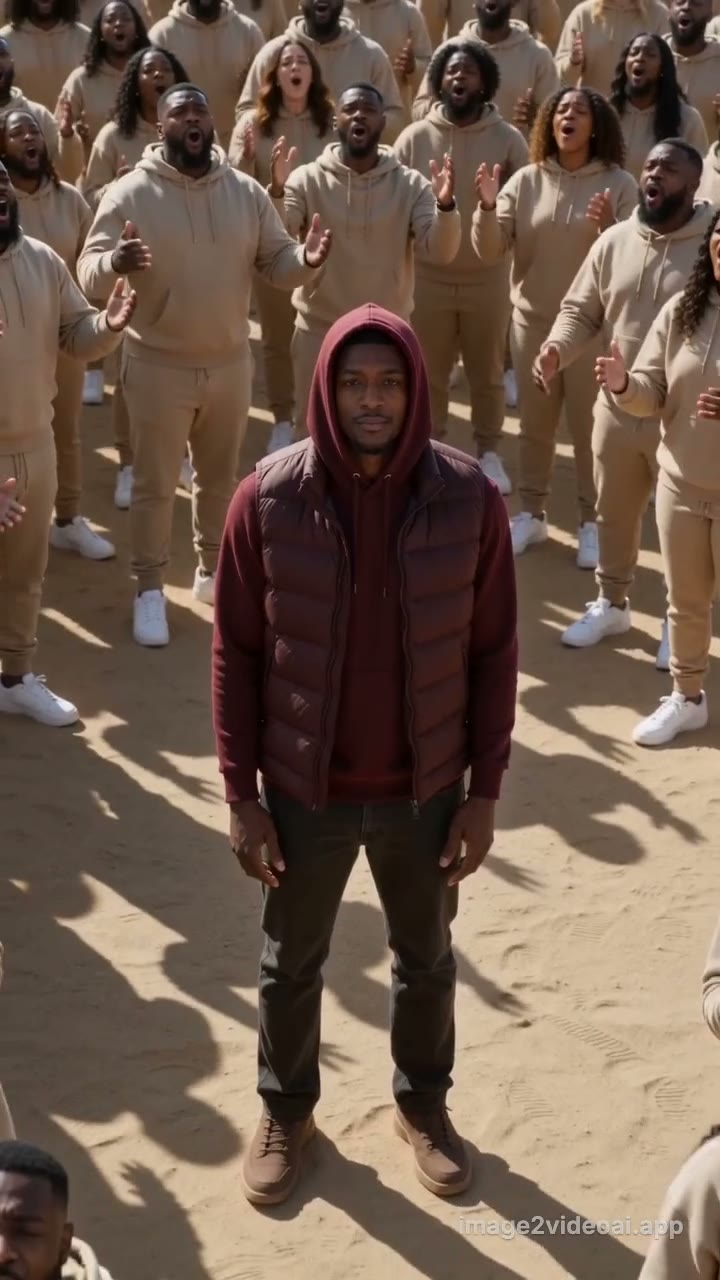 Closed on Sunday AIClosed on Sunday AI turns one photo into the desert choir trend: you stand dead still in burgundy inside a huge beige-clad choir while the camera slowly rises away, 10 seconds, vertical.
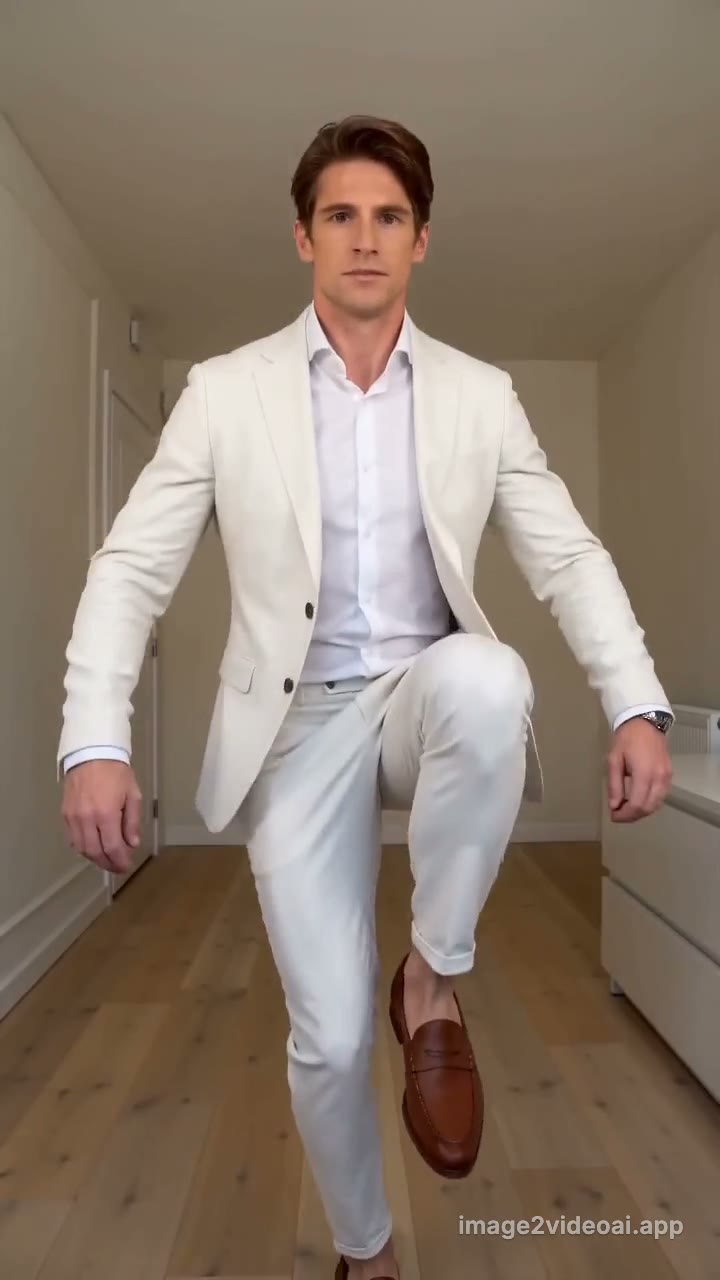 Jean-Phil Dance AIJean-Phil Dance AI turns one photo into the trend video: in an all-white suit, you hop on one leg, knock on an invisible door and freeze, totally deadpan, in a small white room, 10 seconds, vertical.
 Burning Bridges AIBurning Bridges AI turns one photo into the "where she at" trend video: silver cup in hand, you point at the lens and scan a crowded, chandelier-lit private dining room with a hand over your eyes.
Updated November 3, 2026 · image2videoai.app/spotify-canvas-maker
